
Google Classroom Tutorial
Arranging a Meet
How to arrange a Google Meet via Google Classroom
Google Classroom’s new feature allows you to create meetings which will run via Google Meet, so you can easily contact Students.
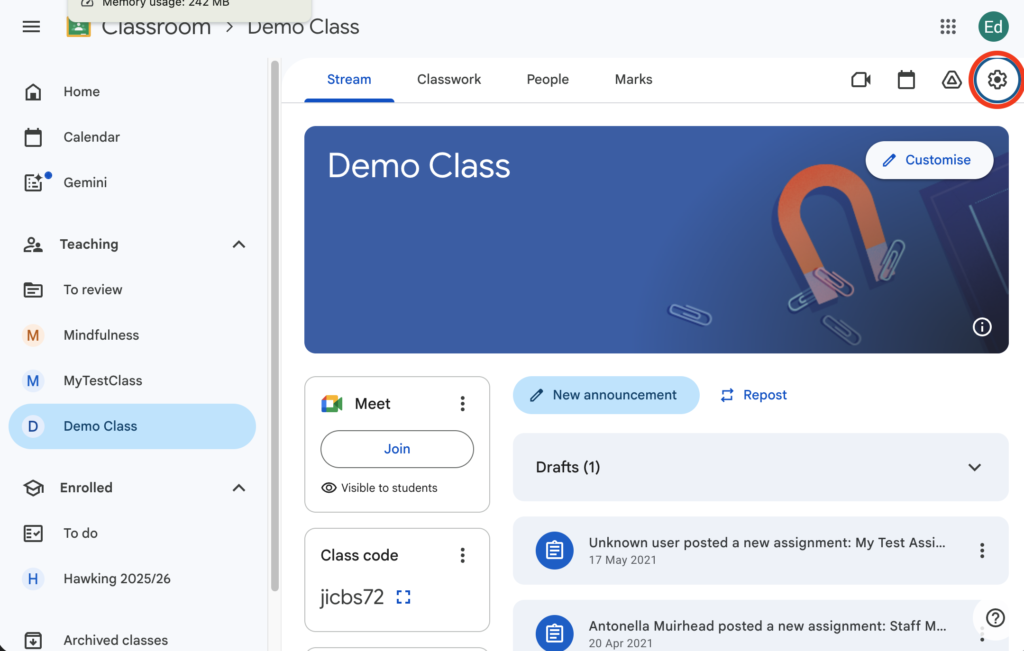
Firstly, ensure you are logged into Google Classroom, and press on the Settings cog on the top right hand corner.
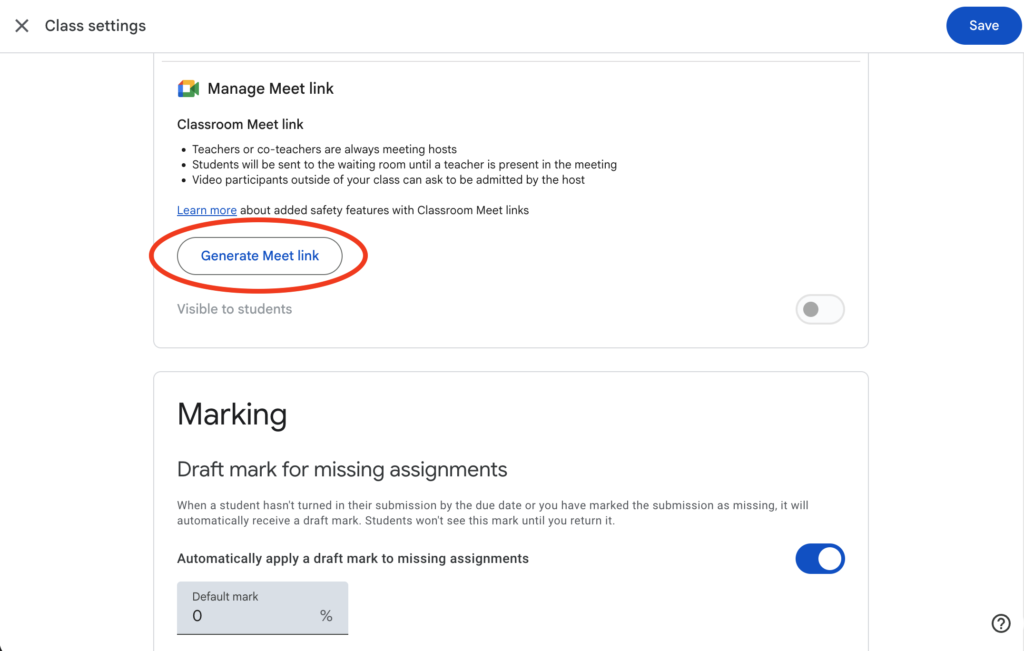
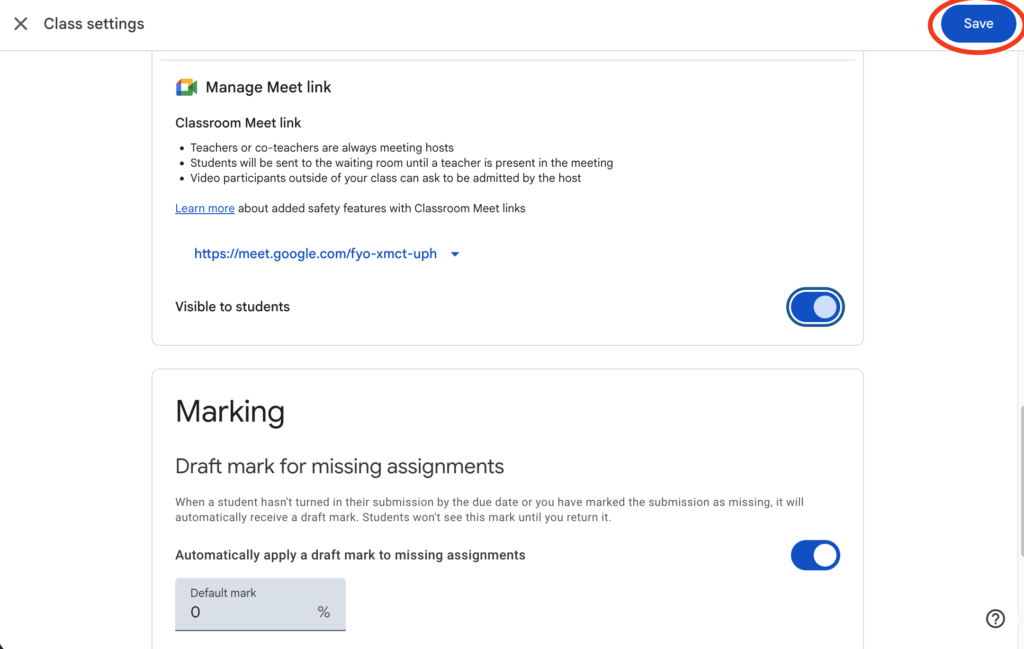
Once there, scroll down to your ‘General’ settings and click on ‘Generate Meet Link’ .
A Google Meet link will then be generated.
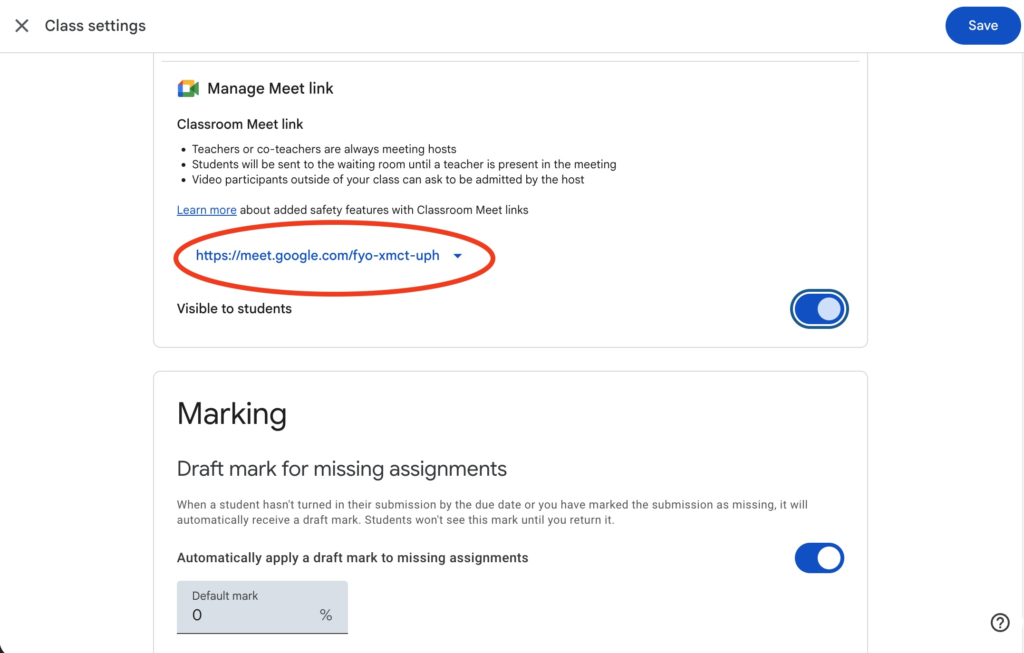
The URL will automatically be visible for students to view. You can turn this off by clicking on the button below.
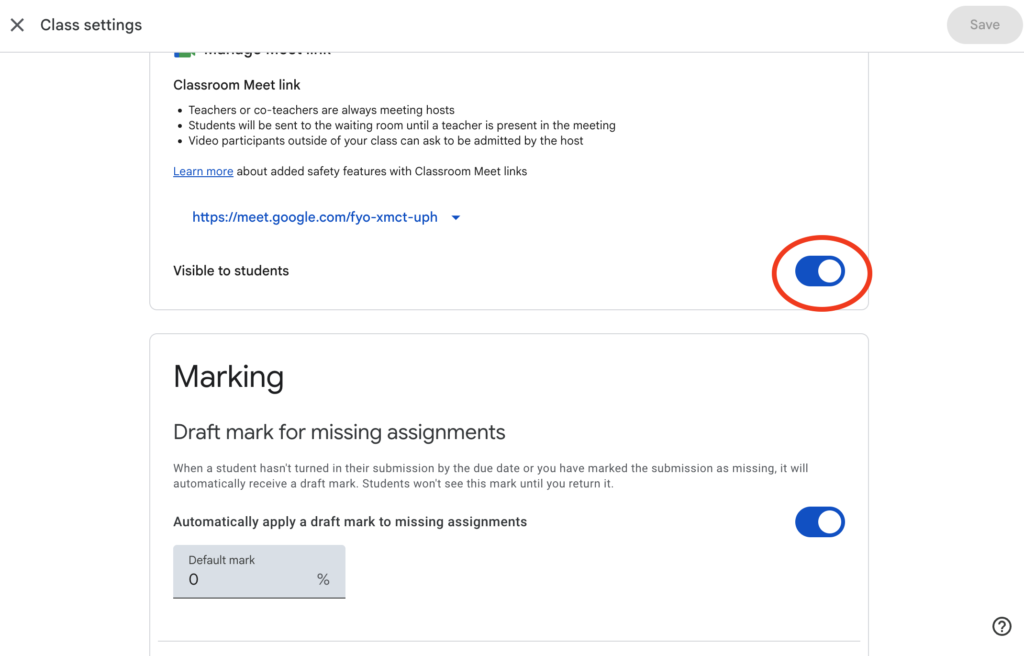
You will then need to press on ‘Save’ on the top right hand corner to confirm your changes.
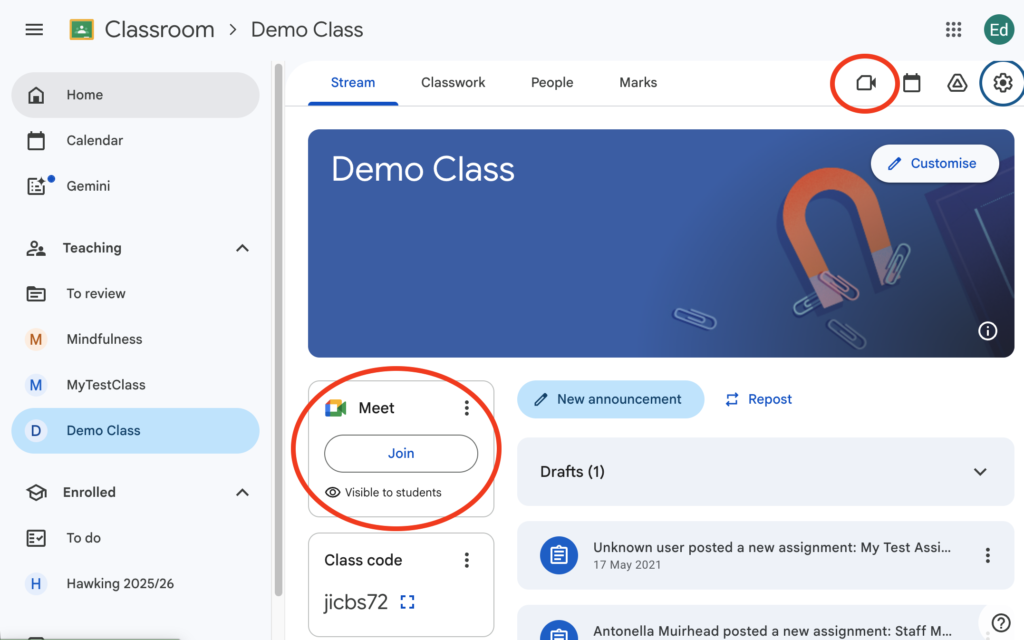
Once saved, you will be redirected back to the class stream page. If you made the link visible to pupils, the camera icon, will appear in the header to the classroom and a meet link will appear on the left for staff and pupils to access the meeting.
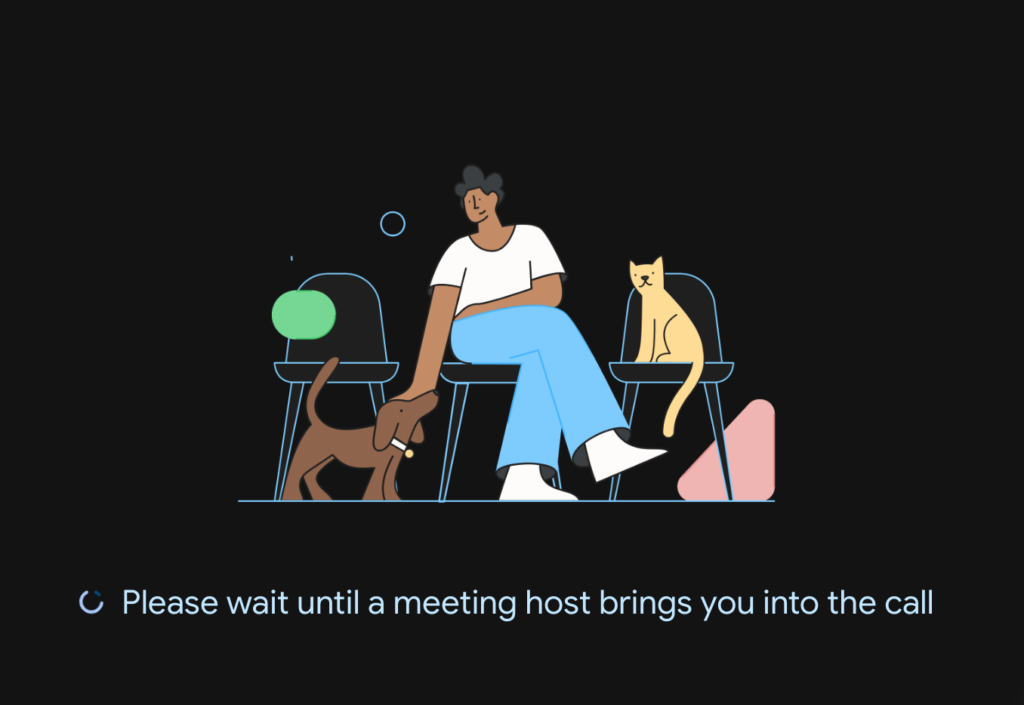
Student’s can only join meetings this way if a teacher is present. If a student tries to join a meeting without a teacher present, they will see the below screen.
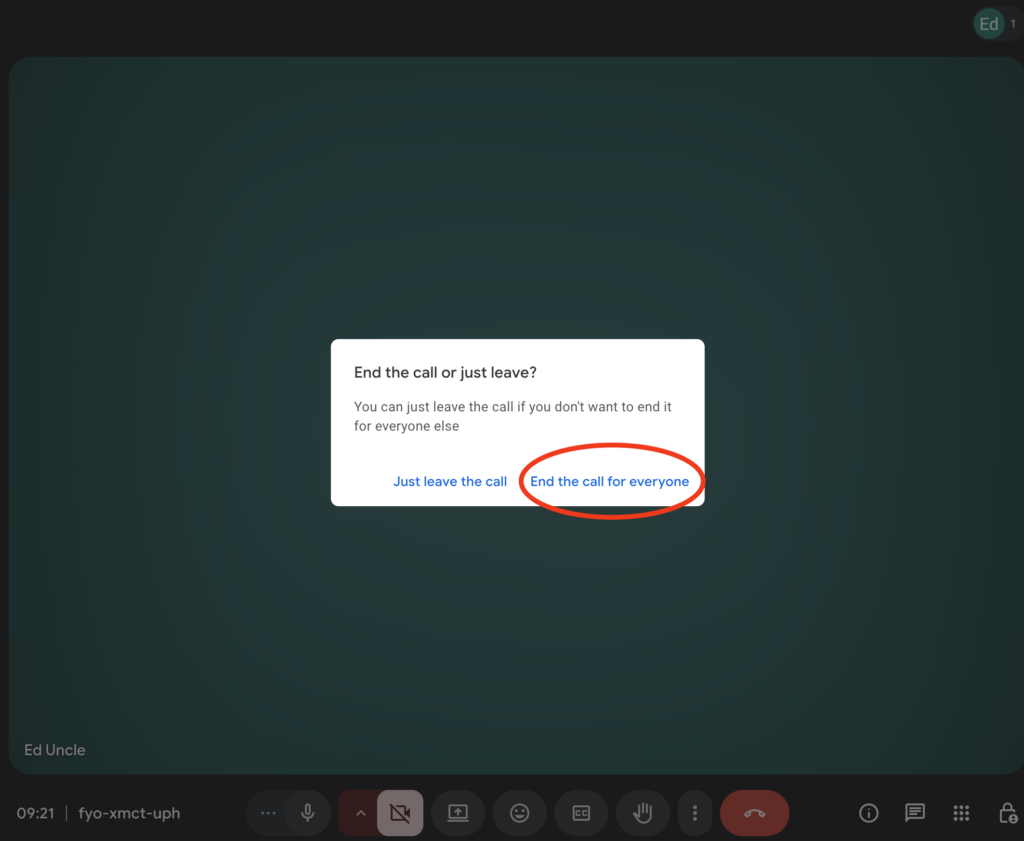
Once you have finished your meeting, click the red hang-up button and be sure to choose ‘End the call for everyone’ to prevent students remaining in the meet unsupervised.





Call Us
01920 41 22 11
Address
Hoe Lane
Ware
Hertfordshire
SG12 9PB
Email Us
admin@pinewood.herts.sch.uk
Contact Form
Message us now...